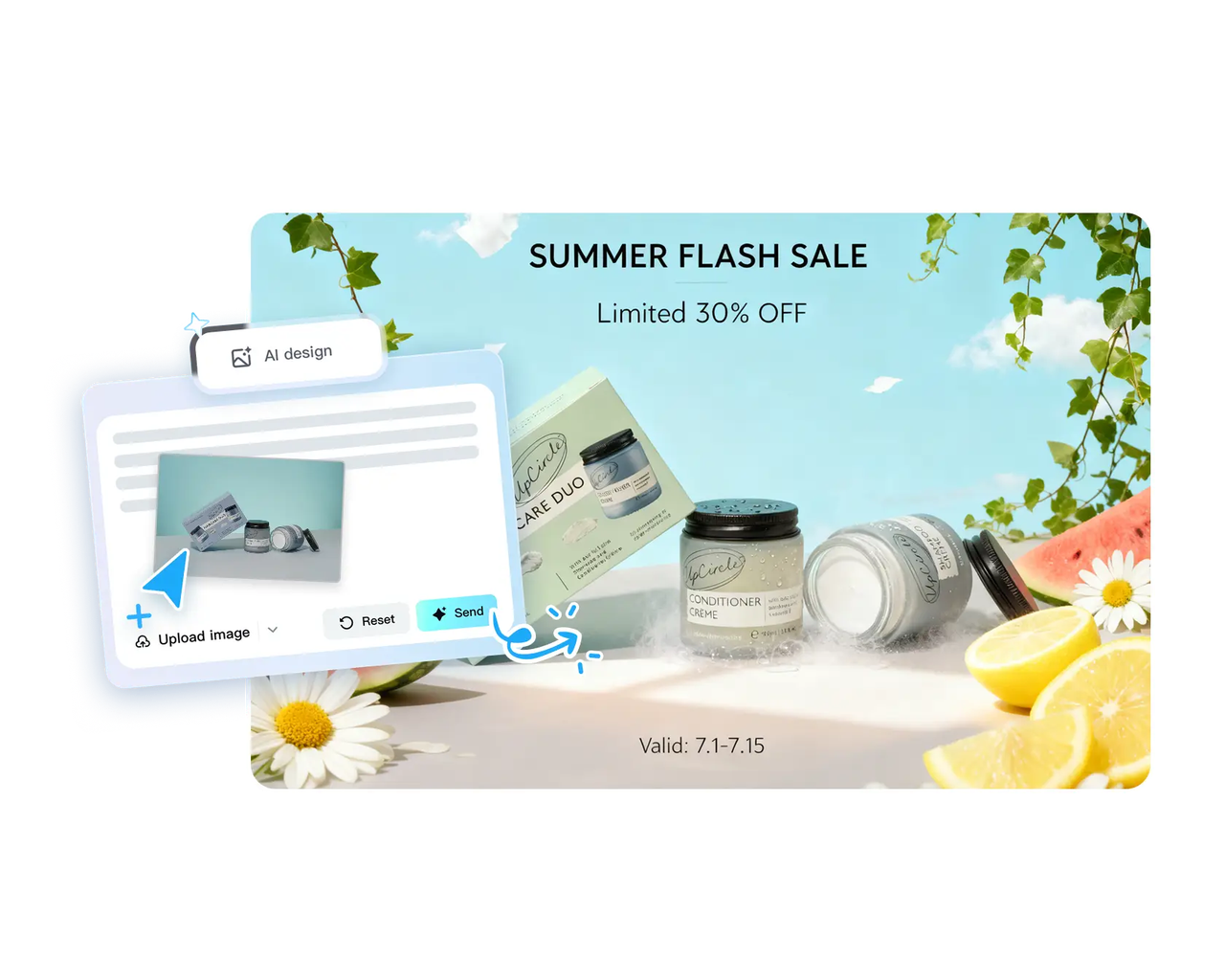
10 Powerful Online Photo Editing Tools in 2026 (Expert Recommendations)

Share via:

As a professional with years of experience in photography and visual media, I have dedicated extensive time to testing and refining editing techniques. Every evaluation of online photo editor tools is carried out methodically, focusing on workflow efficiency, reliability, and output quality. My approach ensures that only tools with practical, consistent performance are highlighted, avoiding slow processes and unstable results that can disrupt creative projects.

This year, I tested dozens of online photo editors on real-world projects, comparing speed, automation, and smart features. After hands-on analysis, I identified the top editors that truly save time while delivering polished results. Each recommendation emphasizes quick retouches, background edits, and ready-to-use templates, making them ideal for social posts, marketing banners, and rapid portfolio enhancements.

Core Findings

As a professional digital creator and photo editing reviewer, I’ve spent years testing the most reliable web-based photo editors. Below are my top ten online tools for 2026—each platform combines intuitive workflows, AI-powered features, and creative flexibility to help you produce polished visuals efficiently.

  • CapCut: Ideal for complete marketing visuals and batch AI imaging. Offers automation for fast edits and polished graphics with minimal effort.
  • Photopea: A web-based editor with Photoshop-like capabilities. Perfect for advanced layer-based editing without software installation.
  • Pixlr: Great for one-click corrections and easy composite creation. Fast interface for social media and marketing imagery.
  • Fotor: Excels at template-driven marketing graphics and batch edits. Streamlines repetitive tasks while maintaining professional quality.
  • Polarr: Focused on advanced color grading and creative filter application. A top choice for stylized visual aesthetics.
  • BeFunky: Simplifies quick collages and social-ready images. Fun, intuitive, and perfect for small projects or campaigns.
  • Lunapic: Offers quirky edits and creative filters with full edit history. Ideal for experimental or playful visuals.
  • iPiccy: Simple retouching and overlays made fast. Designed for quick fixes and easy image enhancement.
  • SumoPaint: Web-based sketching and painterly adjustments. Suits digital artists looking to create unique illustrations online.
  • Remove.bg: Lightning-fast background removal only. Streamlines isolating subjects for quick compositions or professional designs.

These online photo editors redefine productivity and creativity, giving you the tools to craft professional-quality visuals quickly and efficiently in 2026.

10 Best Online Photo Editing Tools in 2026

  1. CapCut

CapCut leads this list as a powerful photo editor built for speed and creativity. Its AI improves both ordinary fixes and elaborate composites. Seedream 4.0 drives high level batch referencing and consistent results. Users are able to mix, restyle and merge images instantly. Color matching automates unifying palettes to market and social posts. The editor automatically resizes images to be used on social sites. Background elimination is surgical.

The AI background generator crafts new backdrops in seconds. Large templates speed up design processes. Team projects are made easier through cloud storage and collaboration features. Export features are custom naming and 4K. There is seamless sharing of assets between mobile and web editors. The tool is easily approachable by both novices and professionals, with no cost and no complex features. Useful when you want to market fast.
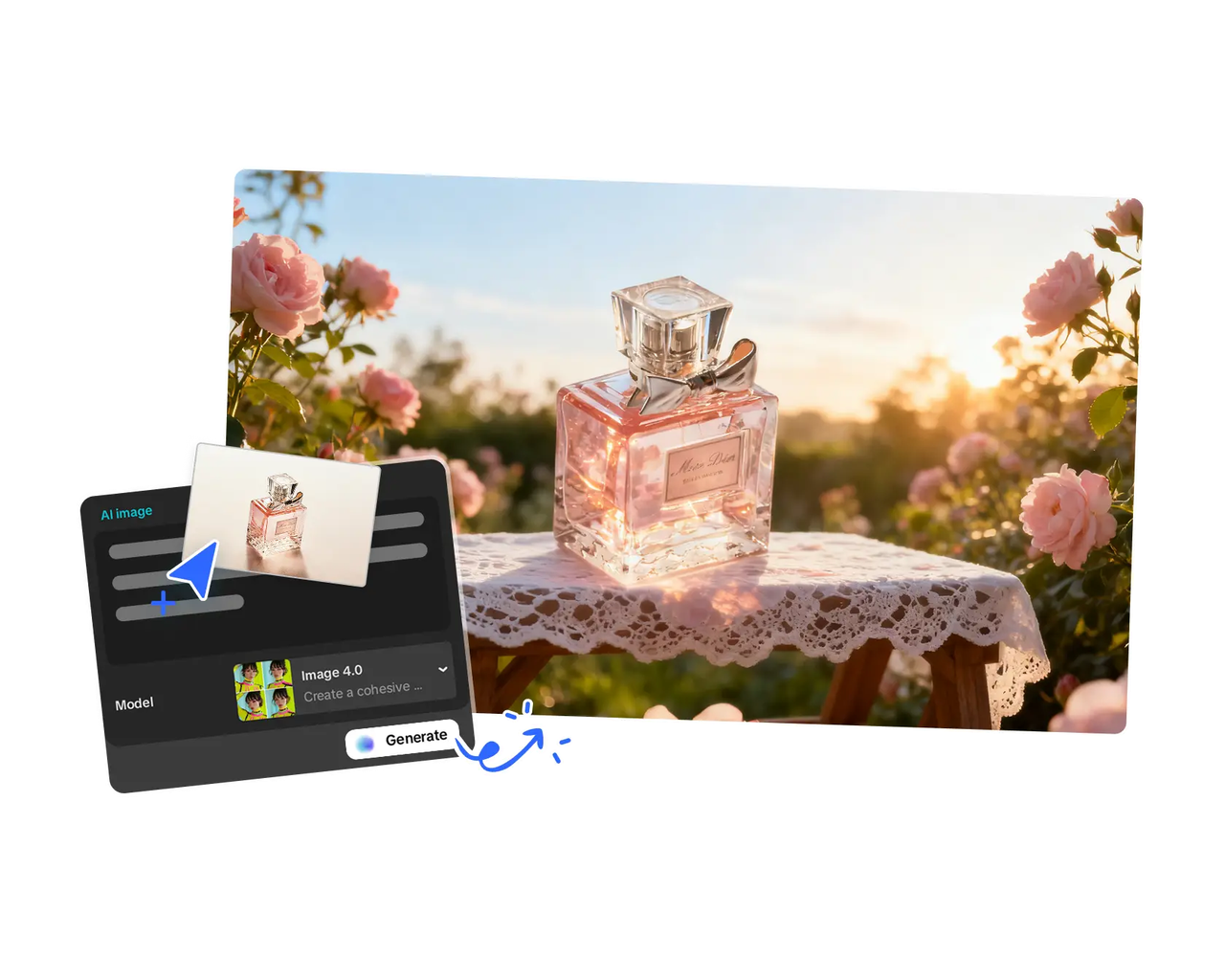
Essential CapCut Features You Should Know:

  • Seedream 4.0 — advanced AI model for consistent batch image outputs.
  • Blend & Restyle — composite multiple images into one cohesive design.
  • Color Match — automatic palette generation for cohesive visuals.
  • Image Resizer — quick aspect ratio and platform-specific resizing.
  • Background Remover — automatic removal with surgical precision.
  • AI Background Generator — create new backgrounds with AI prompts.
  • Massive Templates — ready-to-use templates for banners and posts.
  • Cloud Storage — keep files in the web workspace for teams.
  • Custom Export — choose name, format, and up to 4K resolution.

Price Free version includes standard tools. CapCut Pro: $19.99/month — unlocks premium AI tools, templates, and 4K export.

Best for Creators, small businesses, and marketing teams that need quick, professional results. Ideal for those combining image and video workflows or managing brand visuals across platforms.

Steps to Use The Easiest Photo Editor

Step 1: Kickstart your marketing visuals Log into CapCut, go to the “Image” section, and click “New image”.
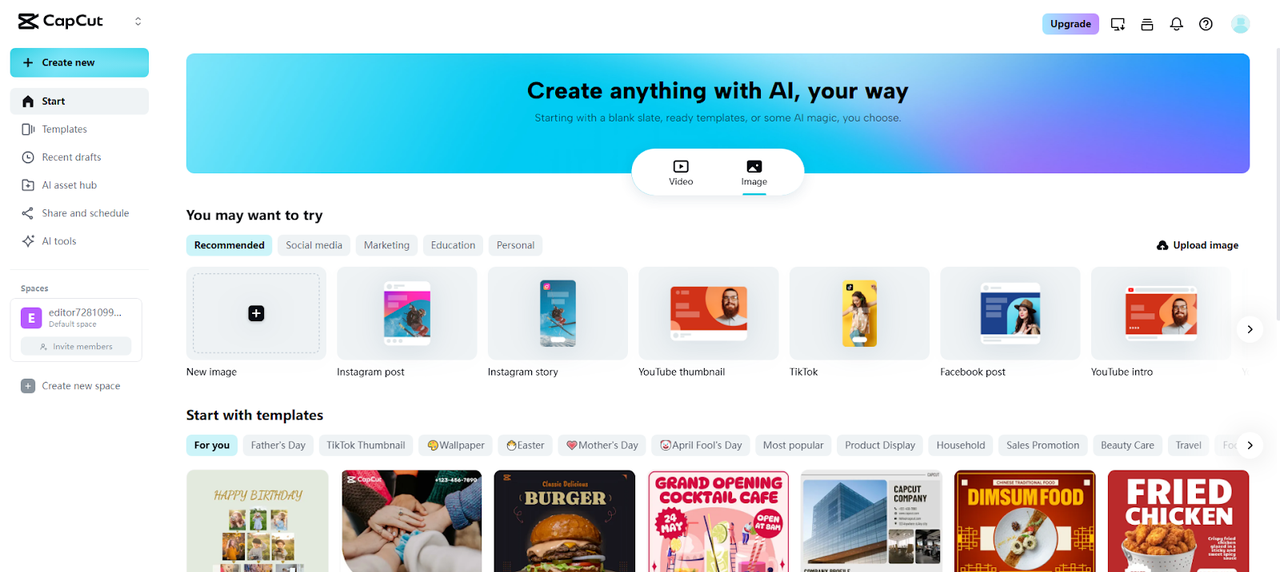
This takes you to the main editing screen where a pop-up allows you to set your dimensions. Pick a preset option or add a custom one that fits your campaign. You can upload marketing visuals from your device, Cloud, Google Drive, or Dropbox, or use ready templates for a faster start.

Step 2: Enhance for maximum impact Add some marketing text, shapes, or stickers to make your photo convincing. Manipulate the position, orientation and curve of the words so that communication is easy to understand. Add filters and effects to get attention and stand out in feeds. In case you need to, combine several photos to make a campaign-ready image.
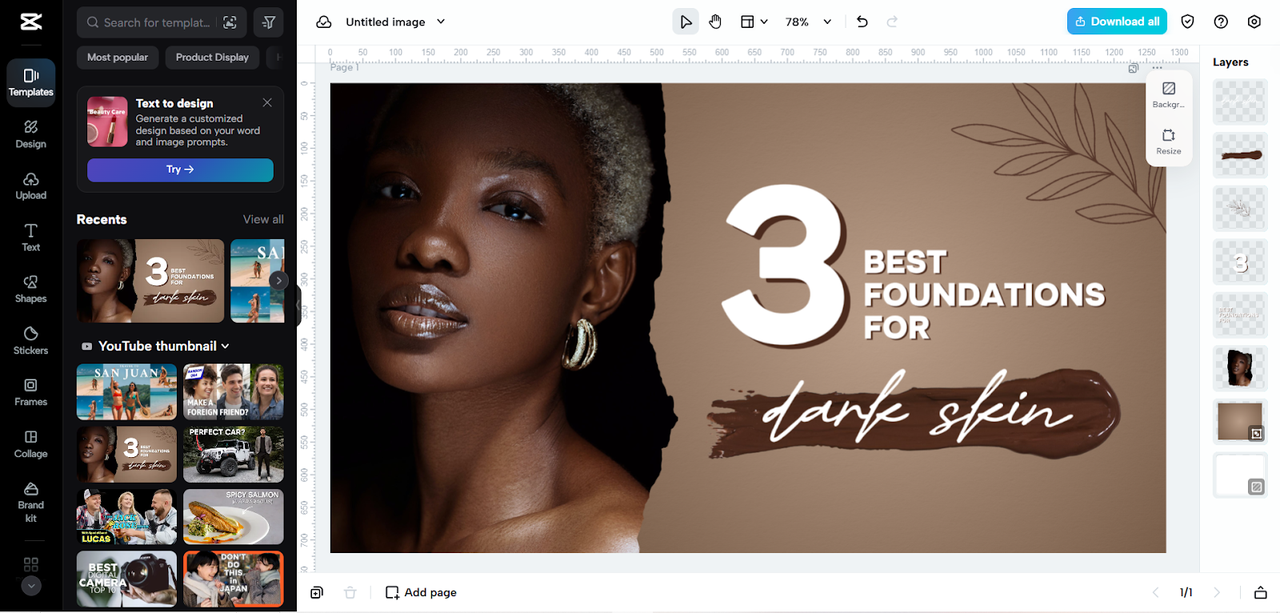
Step 3: Download for campaigns Once complete, click the “Download all” option in the top right corner. Then choose “Download” to customize file size, quality, and format for campaigns. Save it locally or copy as “PNG” for instant use in ads, posts, or presentations.
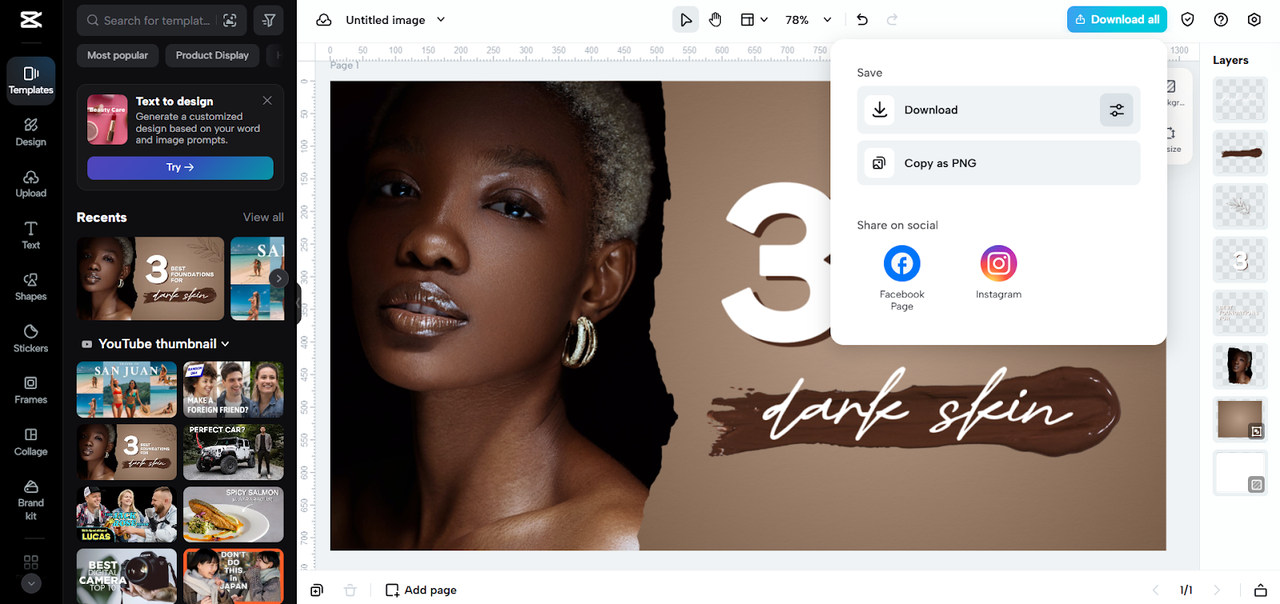
What we like CapCut’s standout strength lies in how much it automates without compromising creative flexibility. I’ve used it for everything from retouching portraits to generating AI backdrops, and it consistently impresses with how clean and accurate the outputs are. The integrated color matching and auto-resizing for social platforms make publishing faster than ever. Collaboration tools with cloud storage help remote teams coordinate seamlessly. The free version is surprisingly complete, while the Pro plan unlocks deep AI features that rival far more expensive desktop software.

What we dont like Some of the more advanced features, like batch AI generation or premium templates, are locked behind the Pro subscription. Manual control over layer-based adjustments is still limited, meaning those who prefer pixel-level editing might find it restrictive. The reliance on cloud storage also means heavy internet usage during large exports. While performance is excellent overall, users seeking granular creative control may want more fine-tuning options.

User Experience CapCut feels lightweight, intuitive, and modern. I especially like how it merges photo and video editing under one interface. The workspace loads fast and stays stable even when handling multiple images at once. Whether editing on desktop or mobile, it maintains consistency in layout and tools, making it easy for both beginners and professionals to jump in and create.

  1. Photopea

Photopea is a web-based replica of a professional editor. It supports the opening of PSD, XCF and SVG files. There are layer support, masks and advanced blending modes. The editor is familiar to designers that have layered workflows. Performance is still rapid with average files. Photopea is the best choice when elaborate masks and accurate selections are required.
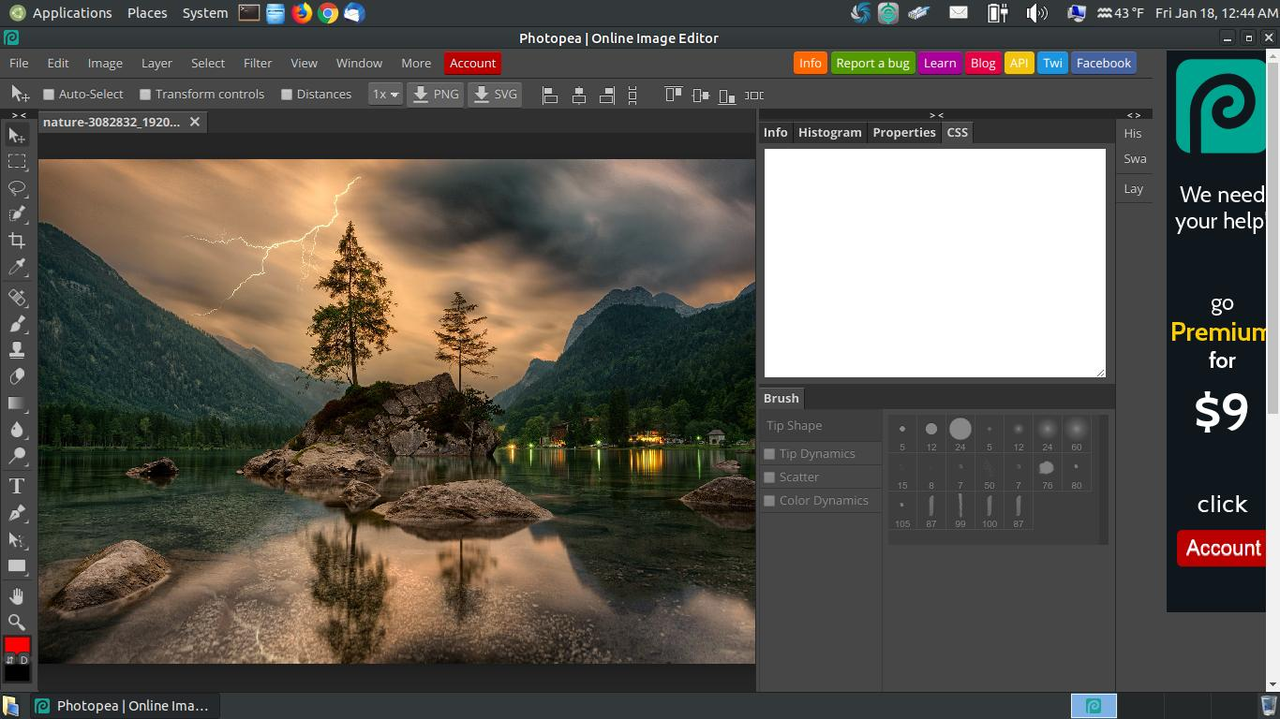
Price Free with ads. Premium removes ads: $9.99/month or $99/year.

Best for Designers, photographers, and creative professionals who want advanced, Photoshop-like features without software installation. Excellent for quick edits on shared devices.

What we like Photopea continues to amaze me with how closely it mirrors desktop-level functionality inside a browser. It supports full PSD files, masks, filters, and blending modes with near-instant responsiveness. I especially appreciate the ability to edit multiple layers and export to major file types without downloading additional software. It’s a lifesaver for on-the-go design adjustments or quick retouching tasks on borrowed hardware. For freelancers who collaborate remotely, it’s an efficient bridge between professional editing and portability.

What we dont like The interface can feel intimidating to newcomers, particularly those without prior Photoshop experience. Performance slows down with very large files or high-resolution layers, especially on mid-range laptops. There’s also no dedicated asset marketplace or built-in template system, which limits its speed for marketing-oriented workflows. Some occasional browser compatibility quirks can interrupt longer sessions.

User Experience Photopea’s workspace feels familiar yet refreshingly accessible. Once loaded, it’s responsive and reliable, though slightly demanding on system memory. I found keyboard shortcuts extremely helpful for speeding up repetitive edits. For professionals used to Adobe software, the transition is seamless; for beginners, there’s a brief learning curve that’s well worth overcoming.

  1. Pixlr

Pixlr offers a quick, easy-to-use editor that has two modes. The Express mode provides one- click fixes and filters. The E mode provides layered editing and superior tools. Background removal and style transfer are supported by AI tools. The UI is appropriate to casual editors and social managers, who require fast corrections.
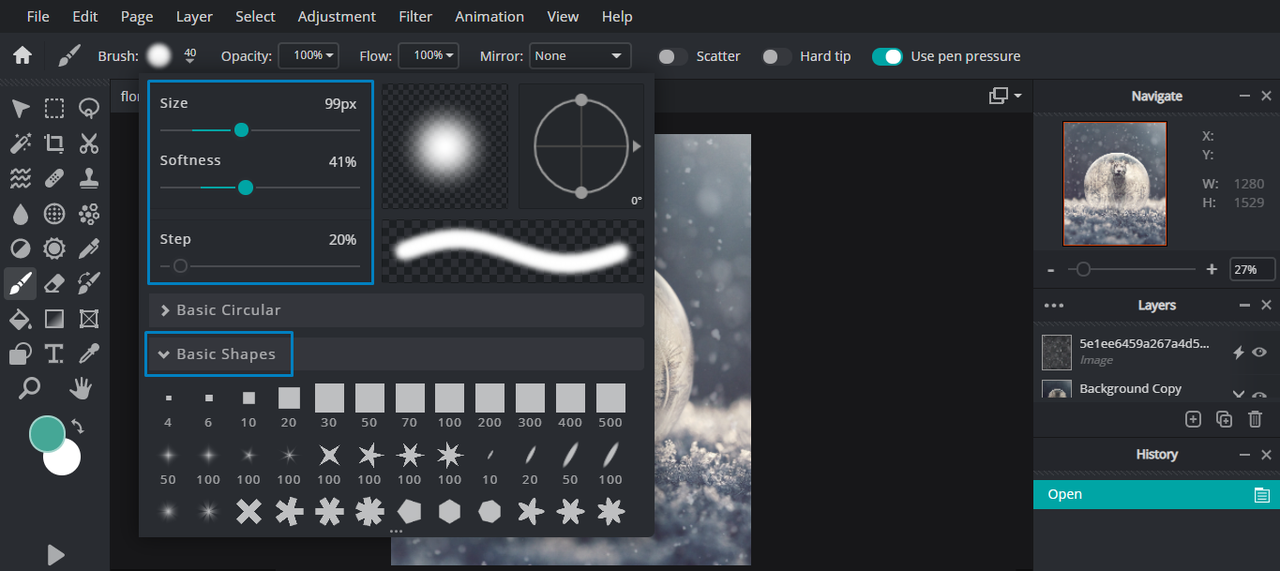
Price Free tier available with ads. Premium: $7.99/month or $47.99/year.

Best for Social media managers, content creators, and anyone needing instant corrections, collages, or AI-assisted retouching directly in a browser.

What we like Pixlr is ideal when time is tight and results need to look good immediately. I like the choice between simple, one-click Express fixes and the more detailed Pixlr E mode. Its AI-powered background removal and color correction tools are fast and accurate. Templates, overlays, and quick export settings make it easy to produce polished visuals for Instagram or ad campaigns. The free tier is generous, offering all the essentials for casual users, while the premium plan enhances workflow speed with extra filters and no ads.

What we dont like Some of Pixlr’s AI tools can produce uneven results on complex or busy images. The free version’s ads can disrupt editing flow, especially during exports. I’ve also found format limitations when saving certain files — professionals may find the export settings too restrictive. Batch editing and high-resolution support could be stronger to appeal to commercial users.

User Experience Pixlr’s clean, dual-mode layout makes it welcoming to all skill levels. The Express mode loads quickly, while the E editor provides more structure for layered work. It performs smoothly even on standard laptops. For quick projects, it’s one of the most reliable browser editors I’ve used.

  1. Fotor

Fotor is a combination of templates, batch processing, and a basic retouching toolkit. The site specializes in the selling of images. The categories of templates are Instagram, banners, and posters. Color and exposure fixes in a large number of files are accelerated by batch processing. The interface remains non-designer friendly.
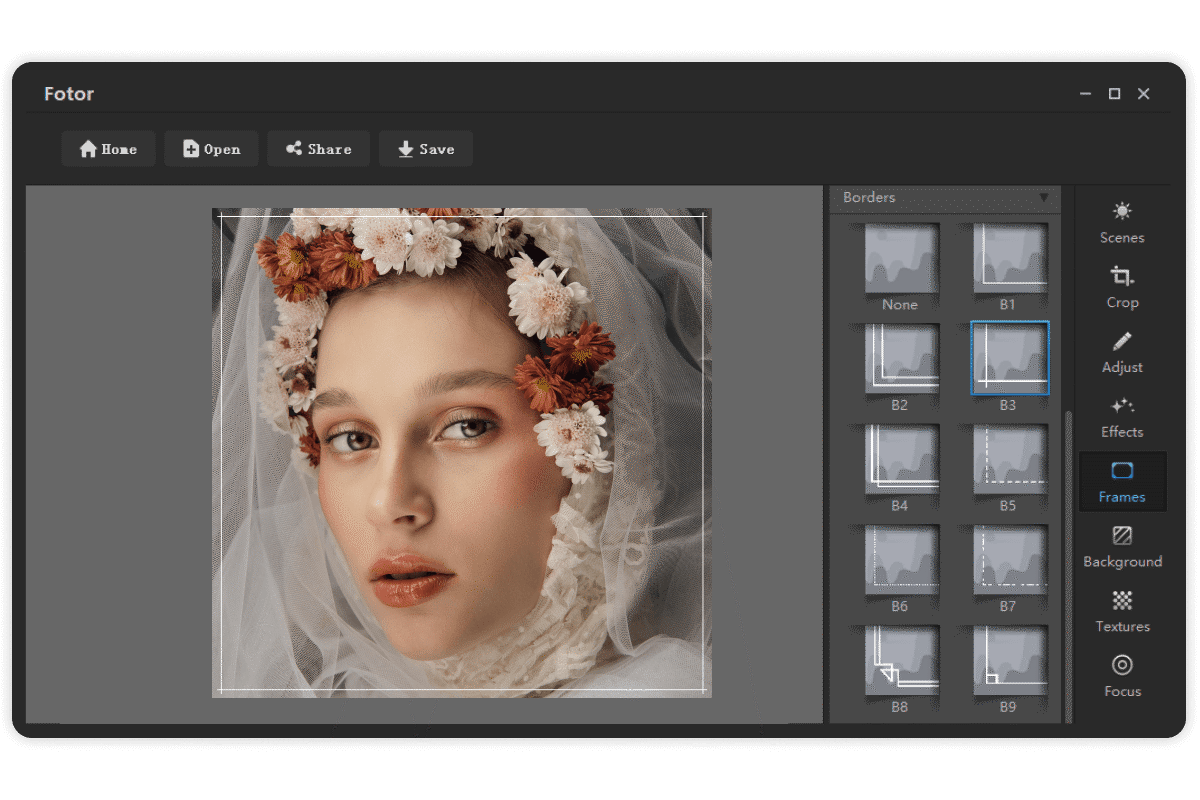
Price Free plan includes core editing features. Pro plan: $8.99/month or $53.99/year.

Best for Small business owners, social media teams, and freelancers who create marketing visuals regularly and need efficient templates for quick turnaround.

What we like Fotor is highly efficient when producing multiple branded images. I’ve used it for social media campaigns, and its templates for Instagram and banners make layout design almost effortless. Batch processing saves hours when adjusting exposure or resizing large image sets. The retouching tools are intuitive and reliable for light portrait fixes. Even beginners can navigate it easily, and the export workflow is one of the most straightforward among web-based editors.

What we dont like The templates, while extensive, can feel repetitive across categories. Professionals looking for originality might need to customize heavily. Some advanced adjustments — like selective color grading or masking — are hidden behind the paid plan. The lack of in-depth layer editing can limit flexibility for complex projects or unique designs.

User Experience Fotor offers a clean, beginner-friendly experience. Its layout prioritizes templates, so creating social graphics or ads feels fast and organized. Performance is smooth, and uploads are handled quickly. It’s an efficient everyday editor for non-designers looking to build consistent marketing visuals.

  1. Polarr

Polarr is color and style oriented. In the web editor, there are advanced grading tools and custom LUTs. Selective color corrections are expedited by AI-assisted masks. Filter packs and presets enable creators to work quickly. Polarr is suitable to users who value unified color in images.
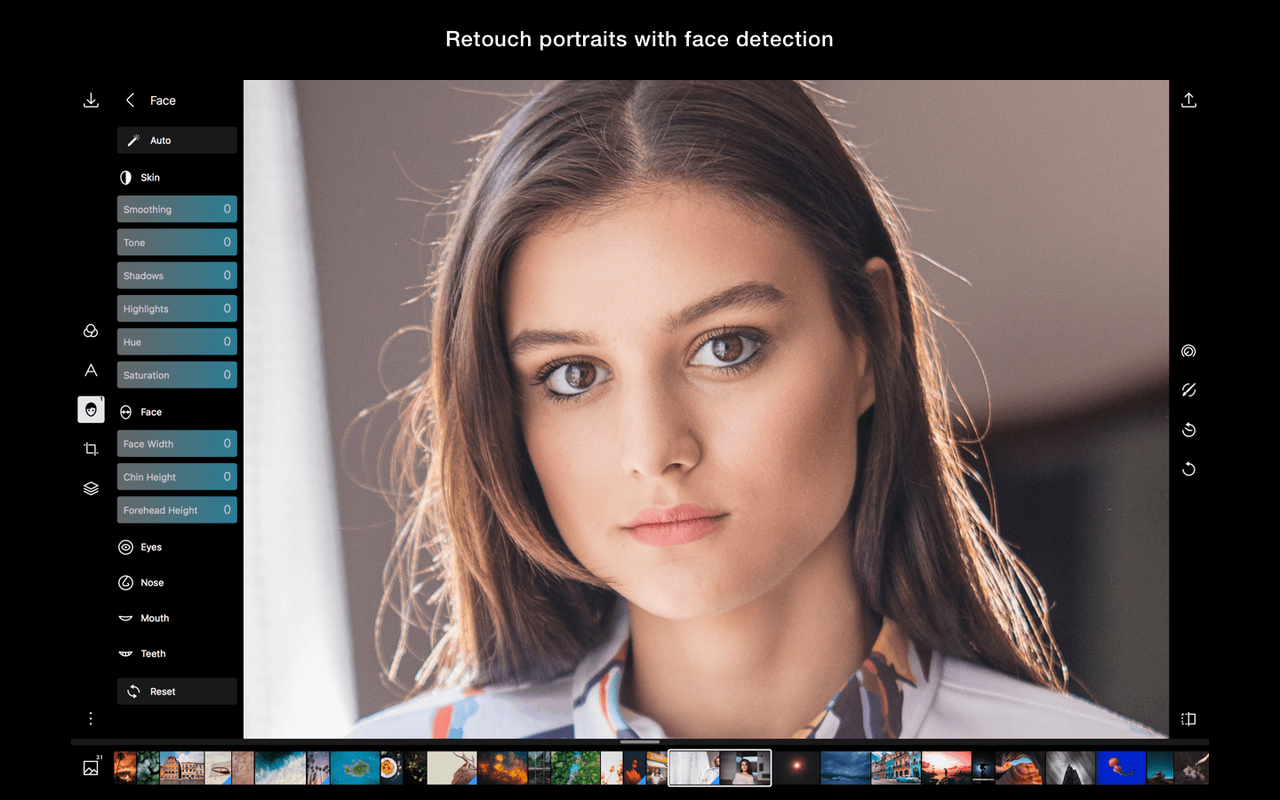
Price Freemium access available. Pro plan: $3.99/month or $19.99/year.

Best for Photographers, influencers, and content creators who prioritize color accuracy, mood consistency, and aesthetic control across their visuals.

What we like Polarr feels purpose-built for those who love color and tone. I’ve relied on its LUTs and AI masks to maintain brand consistency across large photo sets. The precision in its selective adjustments rivals desktop editors. Its filter marketplace also makes it easy to reuse color palettes or visual themes, perfect for building recognizable aesthetics online. Edits apply quickly, and the lightweight interface ensures minimal lag even on basic hardware.

What we dont like Polarr’s masking tools, while accurate, take a bit of practice to master. The absence of batch editing means repetitive work for large series. Some of the best filters are locked behind the subscription plan. The layout can occasionally feel cramped on smaller screens, which slightly affects workflow efficiency during detailed color work.

User Experience Polarr delivers a refined experience once you understand its tools. The learning curve is short, and the visual feedback during editing is excellent. I found the interface fluid and responsive, ideal for maintaining creative flow when color tuning multiple photos.

  1. BeFunky

BeFunky focuses on quick collaging and social-ready editing. It provides single-tap retouches and fun effects. The collage templates will receive the photos in real time by dragging them. Simple graphic design of posts is also supported by the editor. It is aimed at artists who do not want to spend time on details.
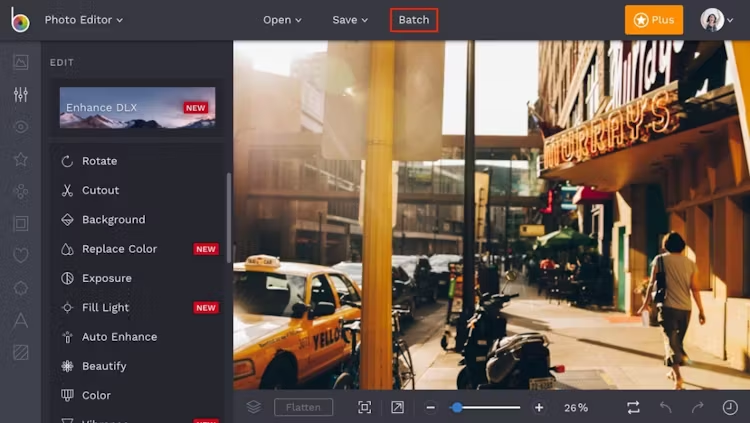
Price Free tier available. Plus plan: $9.99/month or $59.99/year.

Best for Artists, bloggers, and small business owners who need easy tools to design collages, posters, or promotional visuals quickly.

What we like BeFunky makes design approachable and fun. The collage builder is one of the fastest I’ve used — you simply drag in images and arrange them instantly. Its one-click touch-ups for portraits and built-in stock assets simplify content creation. I enjoy how lightweight and stable the editor feels even during multitasking. It’s a solid option for users who want visually appealing graphics without investing in heavy design software.

What we dont like BeFunky’s editing depth doesn’t satisfy advanced retouching needs. Sticker and overlay selections, while creative, are limited for brand-level projects. Some exports carry watermarks on the free plan, and layer controls remain basic. Professionals might find it too simplistic for detailed or large-scale design campaigns.

User Experience The interface is colorful and intuitive, making it great for beginners. Every feature is labeled clearly, and results are instant. It’s not meant for perfectionists, but for quick social visuals or blog graphics, it’s hard to beat for ease of use.

  1. Lunapic

Lunapic is a traditional web editor that has numerous effects. The playful experimentation is provided by its history panel and filters. The features of instant GIF creation and animation effects are prominent. The interface is retro and yet functional. Lunapic performs better in creative, experimental edits, instead of brand work.
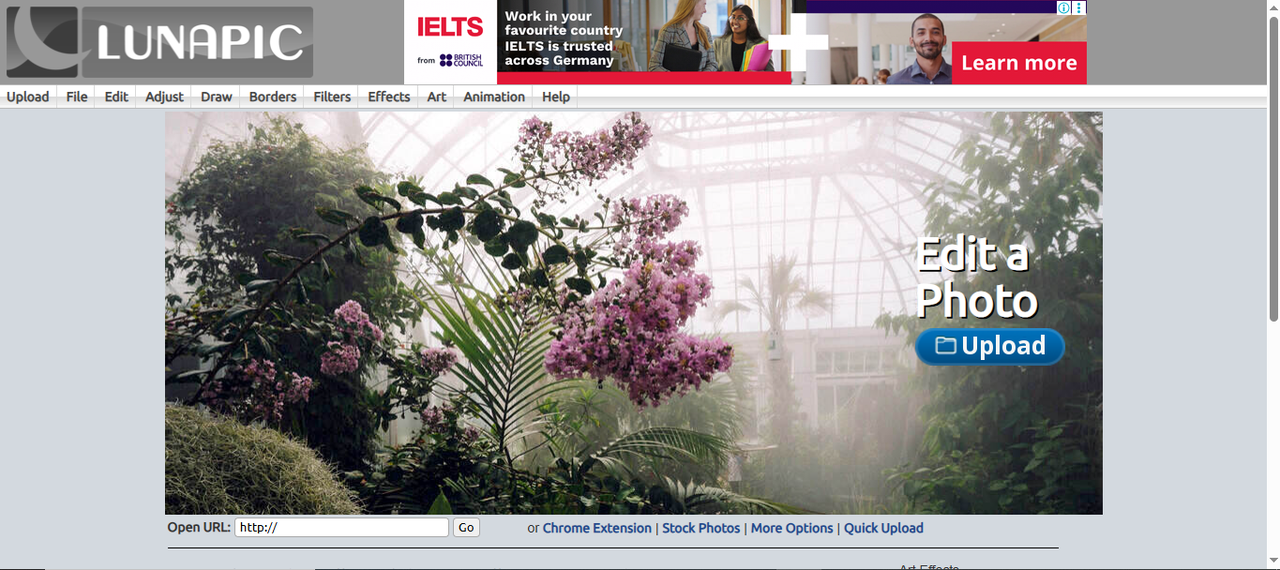
Price Completely free to use. Optional donations accepted.

Best for Casual users and creative experimenters who enjoy applying artistic effects, GIFs, and animations without needing professional-grade controls.

What we like Lunapic stands out for its enormous filter library and immediate feedback system. I’ve had fun testing its sketch, watercolor, and motion effects, all of which process in seconds. The animation tools are surprisingly capable, creating GIFs and looping videos with minimal setup. It encourages experimentation and spontaneity, something missing in more serious editors. The best part is that everything runs directly in your browser, requiring no installations or accounts.

What we dont like Its retro interface feels dated and clunky compared to modern editors. Advanced tools like precise selections or multi-layer control are missing. It’s better for creative play than professional design. The export quality, especially for high-resolution outputs, can sometimes appear inconsistent or compressed.

User Experience Lunapic delivers quick creative satisfaction. It loads fast and operates entirely online. Despite the old-school layout, navigation becomes intuitive after a few tries. It’s a fun, lightweight editor ideal for casual experimentation and artistic projects.

  1. iPiccy

iPiccy is a combination of simple retouched and design application. One-Click auto-enhance and skin smoothing. Text and overlay layers assist in production of fast banners. The editor is conducive to fast remedies and easy posts that do not require an advanced learning curve.
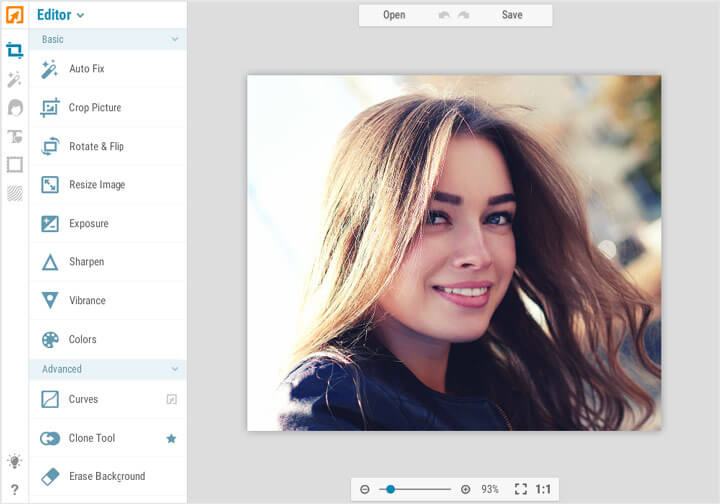
Price Free version with basic tools. Premium removes limits: $19.99/year.

Best for Beginner photographers, bloggers, and social media users who want quick portrait improvements and overlays without complex tools.

What we like iPiccy excels in simplicity. Its auto-enhance feature does a solid job correcting lighting and tone in seconds. I found its text overlay and filter options surprisingly robust for quick banner creation. The lightweight interface loads quickly and performs smoothly even on older systems. It’s an excellent solution for users who want quality edits but have little editing experience. The learning curve is practically nonexistent.

What we dont like The lack of advanced masking and compositing tools limits professional applications. Export formats are few, and image resolution options are basic. The interface, while simple, could benefit from modernization. For complex projects involving layers or high-end retouching, iPiccy falls short.

User Experience iPiccy is designed for speed. It opens instantly and guides you through edits naturally. I appreciate its no-frills workflow — you can complete an edit and export within minutes. It’s the definition of efficient browser-based editing.

  1. SumoPaint

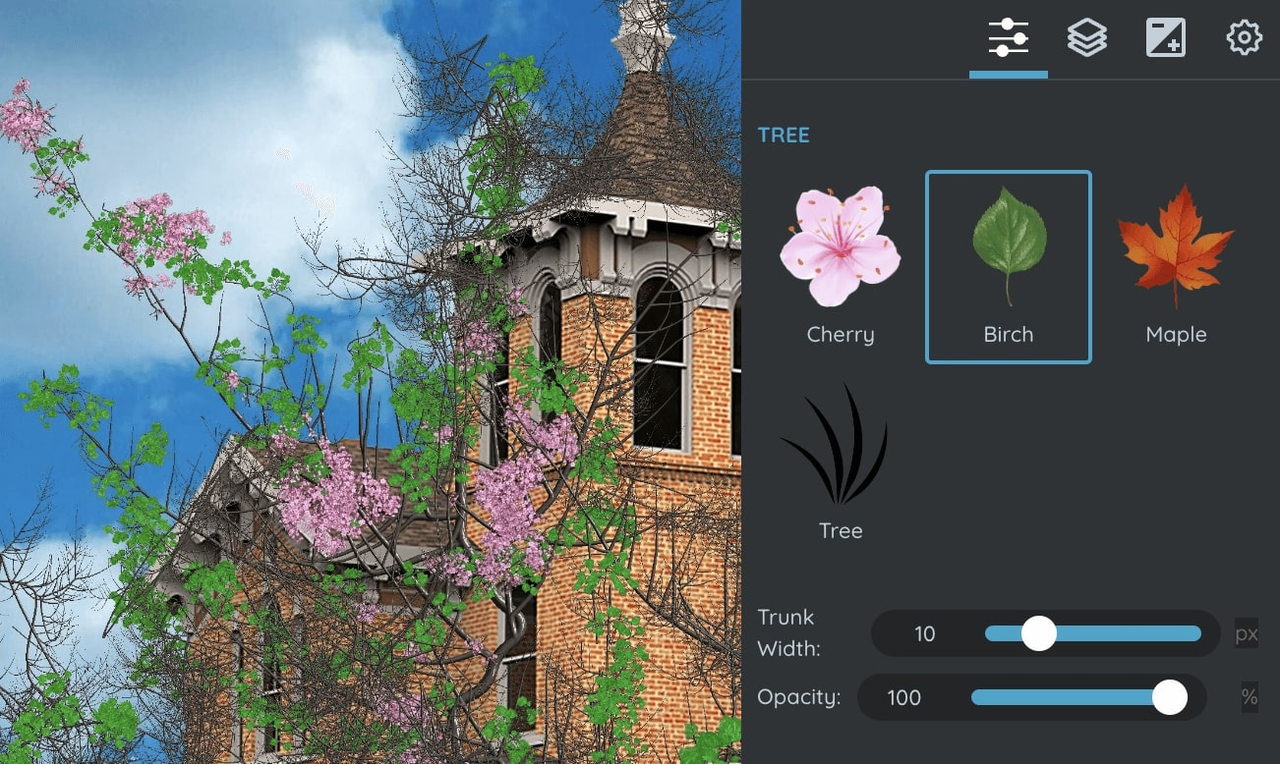
SumoPaint is a photo editing and painting tool. Drawing tools and brush engines are good at painterly edits. It also provides layer mixing modes and rudimentary retouching. The tool is bright when creators desire illustrative changes within an editor.
Price Free with limited tools. Premium: $9.99/month or $99/year.

Best for Digital artists and photographers who enjoy mixing photo manipulation with illustrative elements.

What we like SumoPaint feels like an artist’s workspace built into a browser. The brush engines are responsive and natural, allowing painterly touch-ups that mimic real textures. Its blending modes are excellent for creative composites. I also appreciate how stable the canvas remains even when using multiple tools simultaneously. For artists or designers working on conceptual imagery, it offers a rare balance between digital painting and editing features.

What we dont like SumoPaint’s photo-specific tools are minimal compared to more modern AI editors. Its export functions don’t always align with social media or marketing dimensions. The interface feels slightly outdated, and workflow customization is limited. Professionals who rely on automated AI correction tools will find it slower than newer options.

User Experience Working in SumoPaint feels fluid and hands-on. The brushes react quickly, and the canvas refresh rate is smooth. While not ideal for commercial retouching, it’s highly enjoyable for creative experimentation and mixed-media visuals.

  1. Remove.bg

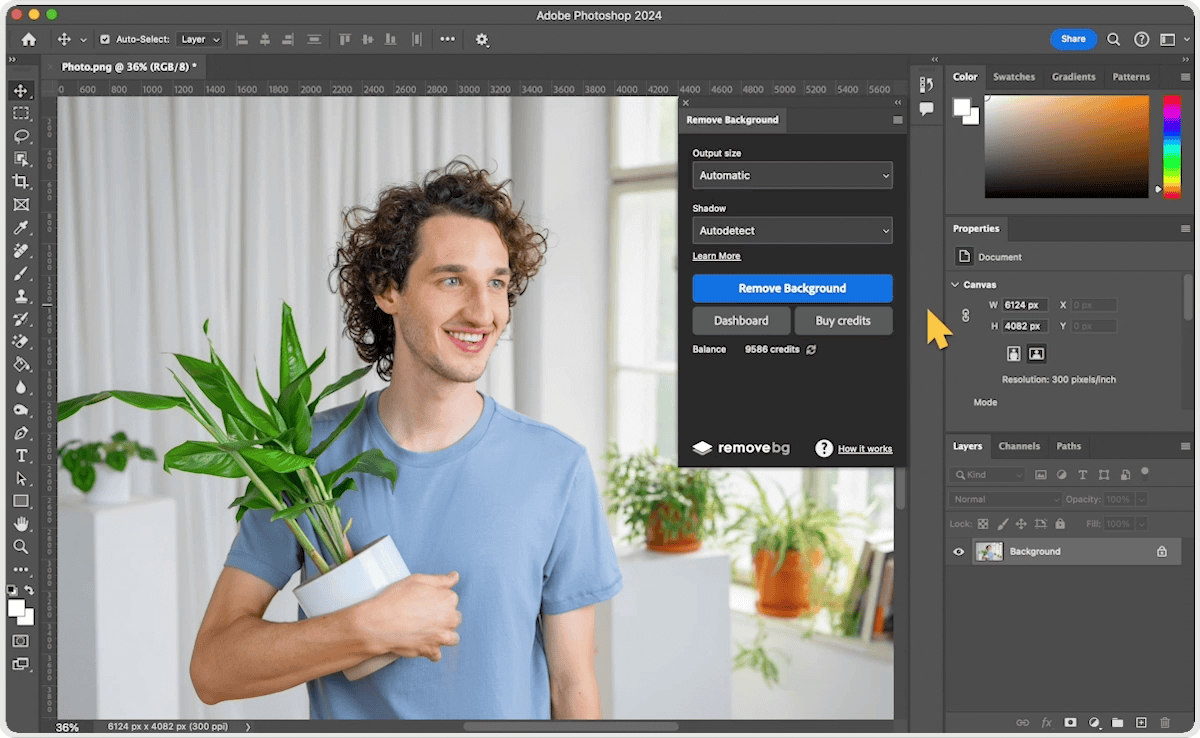
Remove.bg is a company that focuses on one-task background removal. The application is highly accurate and provides a one-click interface. There are fast batch options in case of bulk requirements. It complements other editors to do final composition.
Price Pay-per-image ($0.20) or Pro subscription: $9/month or $89/year. Free preview available for low-resolution exports.

Best for Photographers, marketers, and e-commerce sellers who need clean cutouts for product listings, thumbnails, or composites.

What we like Remove.bg delivers exactly what it promises — lightning-fast, accurate background removal. I’ve tested it on complex subjects like hair and translucent fabrics, and it consistently produced clean edges. Its batch processing option saves significant time during bulk image work. The API integration is another plus, allowing developers or businesses to automate cutouts within larger workflows. Exports come as transparent PNGs, ready for immediate composition in other editors.

What we dont like Since it focuses on a single function, it lacks any editing tools beyond cutouts. Edge refinement occasionally requires post-processing in another editor, especially for intricate areas. The credit-based pricing can become expensive for large-scale use. Still, it remains unbeatable for quick, precise background removal.

User Experience Using Remove.bg is incredibly straightforward. You upload, wait a second, and download a transparent PNG. The results are reliable and fast every time. For bulk uploads, the batch interface feels efficient and modern — a perfect supporting tool for any creative workflow.

Observations From Trying Every Tool Myself

After testing all the top online photo editors for 2026, I realized that the most powerful tool isn’t always the one with the flashiest features. It’s the one that lets you stay productive, creative, and stress-free while delivering consistent results.

I focused on these seven key aspects during my evaluation:

  1. Ease of Use: You want a platform that is intuitive and doesn’t require hours of learning. The best editors make it simple to locate features, apply effects, and complete edits quickly, so you can focus on your creative vision instead of navigating complex menus.
  2. Speed and Performance: You need tools that respond instantly, even when handling multiple images or large files. Smooth performance reduces wait times, prevents crashes, and ensures you can meet deadlines without frustration.
  3. AI-Powered Features: You can leverage intelligent tools for background removal, color correction, or automatic enhancements. These features save time and give your projects a professional finish without manual precision work.
  4. Template and Preset Availability: You want access to ready-to-use templates and effect presets. They help you maintain consistency across your visuals and speed up repetitive tasks, especially for social media posts or marketing campaigns.
  5. Creative Flexibility: You should be able to experiment with filters, overlays, and compositing options. A good editor encourages you to explore new styles while providing enough control to fine-tune your results.
  6. Collaboration and Cloud Support: You can benefit from shared workspaces, cloud storage, and team collaboration tools. These features make it easy to coordinate with colleagues or clients, streamlining group projects and file management.
  7. Affordability: You want tools that give you maximum value for your investment. Whether free or paid, the best editors provide advanced capabilities without breaking your budget. Flexible pricing or freemium options let you scale usage based on your needs.

After evaluating all these factors, CapCut stands out as my top choice. It balances automation and creative freedom perfectly, providing AI-powered tools, templates, and batch processing that make producing polished visuals fast and efficient. Whether for social media, marketing, or portfolio work, it’s the platform I rely on most to get high-quality results consistently.

Conclusion

Each person has their preferred tools based on their needs, however, I would most suggest CapCut in the majority of online picture workflows. CapCut accelerates the repetitive processes and the output is always in batch. The templates and artificial intelligence functions minimize the necessity of back and forths. CapCut provides an effective fast output on social, marketing, and regular series. Other editors are experts in their niche. Photopea works better in layers, Photoshop-like editing is needed. Remove.BG is applicable in cases where background removal has to be real-time. Polarr also provides fine control to pure color grading. To have one, all-around, go-to that offers a balance between automation and quality, CapCut is the best choice.

FAQs

Are there any recommended online photo editing tools? Yes. Top choices for 2026 include CapCut, Photopea, Pixlr, Fotor, Polarr, BeFunky, Lunapic, iPiccy, SumoPaint, and Remove.bg. Each offers unique AI-powered tools and intuitive workflows to create polished visuals efficiently.

Can CapCut handle batch edits and consistent series generation? Yes. CapCut supports batch referencing and consistent image series generation with Seedream 4.0.

Which editor is best when PSD compatibility matters? Photopea handles PSD files best in-browser. CapCut focuses on design, templates, and AI workflows instead.

Is background removal accurate enough for product images in CapCut? CapCut’s background remover performs well for product shots. Manual touch-up may help fine edges sometimes.

Disclaimer

We strive to uphold the highest ethical standards in all of our reporting and coverage. We StartupNews.fyi want to be transparent with our readers about any potential conflicts of interest that may arise in our work. It’s possible that some of the investors we feature may have connections to other businesses, including competitors or companies we write about. However, we want to assure our readers that this will not have any impact on the integrity or impartiality of our reporting. We are committed to delivering accurate, unbiased news and information to our audience, and we will continue to uphold our ethics and principles in all of our work. Thank you for your trust and support.

Team SNFYI
Hi! This is Admin.

Popular

More Like this

10 Powerful Online Photo Editing Tools in 2026 (Expert Recommendations)

As a professional with years of experience in photography and visual media, I have dedicated extensive time to testing and refining editing techniques. Every evaluation of online photo editor tools is carried out methodically, focusing on workflow efficiency, reliability, and output quality. My approach ensures that only tools with practical, consistent performance are highlighted, avoiding slow processes and unstable results that can disrupt creative projects.

This year, I tested dozens of online photo editors on real-world projects, comparing speed, automation, and smart features. After hands-on analysis, I identified the top editors that truly save time while delivering polished results. Each recommendation emphasizes quick retouches, background edits, and ready-to-use templates, making them ideal for social posts, marketing banners, and rapid portfolio enhancements.

Core Findings

As a professional digital creator and photo editing reviewer, I’ve spent years testing the most reliable web-based photo editors. Below are my top ten online tools for 2026—each platform combines intuitive workflows, AI-powered features, and creative flexibility to help you produce polished visuals efficiently.

  • CapCut: Ideal for complete marketing visuals and batch AI imaging. Offers automation for fast edits and polished graphics with minimal effort.
  • Photopea: A web-based editor with Photoshop-like capabilities. Perfect for advanced layer-based editing without software installation.
  • Pixlr: Great for one-click corrections and easy composite creation. Fast interface for social media and marketing imagery.
  • Fotor: Excels at template-driven marketing graphics and batch edits. Streamlines repetitive tasks while maintaining professional quality.
  • Polarr: Focused on advanced color grading and creative filter application. A top choice for stylized visual aesthetics.
  • BeFunky: Simplifies quick collages and social-ready images. Fun, intuitive, and perfect for small projects or campaigns.
  • Lunapic: Offers quirky edits and creative filters with full edit history. Ideal for experimental or playful visuals.
  • iPiccy: Simple retouching and overlays made fast. Designed for quick fixes and easy image enhancement.
  • SumoPaint: Web-based sketching and painterly adjustments. Suits digital artists looking to create unique illustrations online.
  • Remove.bg: Lightning-fast background removal only. Streamlines isolating subjects for quick compositions or professional designs.

These online photo editors redefine productivity and creativity, giving you the tools to craft professional-quality visuals quickly and efficiently in 2026.

10 Best Online Photo Editing Tools in 2026

  1. CapCut

CapCut leads this list as a powerful photo editor built for speed and creativity. Its AI improves both ordinary fixes and elaborate composites. Seedream 4.0 drives high level batch referencing and consistent results. Users are able to mix, restyle and merge images instantly. Color matching automates unifying palettes to market and social posts. The editor automatically resizes images to be used on social sites. Background elimination is surgical.

The AI background generator crafts new backdrops in seconds. Large templates speed up design processes. Team projects are made easier through cloud storage and collaboration features. Export features are custom naming and 4K. There is seamless sharing of assets between mobile and web editors. The tool is easily approachable by both novices and professionals, with no cost and no complex features. Useful when you want to market fast.

Essential CapCut Features You Should Know:

  • Seedream 4.0 — advanced AI model for consistent batch image outputs.
  • Blend & Restyle — composite multiple images into one cohesive design.
  • Color Match — automatic palette generation for cohesive visuals.
  • Image Resizer — quick aspect ratio and platform-specific resizing.
  • Background Remover — automatic removal with surgical precision.
  • AI Background Generator — create new backgrounds with AI prompts.
  • Massive Templates — ready-to-use templates for banners and posts.
  • Cloud Storage — keep files in the web workspace for teams.
  • Custom Export — choose name, format, and up to 4K resolution.

Price Free version includes standard tools. CapCut Pro: $19.99/month — unlocks premium AI tools, templates, and 4K export.

Best for Creators, small businesses, and marketing teams that need quick, professional results. Ideal for those combining image and video workflows or managing brand visuals across platforms.

Steps to Use The Easiest Photo Editor

Step 1: Kickstart your marketing visuals Log into CapCut, go to the “Image” section, and click “New image”.

This takes you to the main editing screen where a pop-up allows you to set your dimensions. Pick a preset option or add a custom one that fits your campaign. You can upload marketing visuals from your device, Cloud, Google Drive, or Dropbox, or use ready templates for a faster start.

Step 2: Enhance for maximum impact Add some marketing text, shapes, or stickers to make your photo convincing. Manipulate the position, orientation and curve of the words so that communication is easy to understand. Add filters and effects to get attention and stand out in feeds. In case you need to, combine several photos to make a campaign-ready image.

Step 3: Download for campaigns Once complete, click the “Download all” option in the top right corner. Then choose “Download” to customize file size, quality, and format for campaigns. Save it locally or copy as “PNG” for instant use in ads, posts, or presentations.

What we like CapCut’s standout strength lies in how much it automates without compromising creative flexibility. I’ve used it for everything from retouching portraits to generating AI backdrops, and it consistently impresses with how clean and accurate the outputs are. The integrated color matching and auto-resizing for social platforms make publishing faster than ever. Collaboration tools with cloud storage help remote teams coordinate seamlessly. The free version is surprisingly complete, while the Pro plan unlocks deep AI features that rival far more expensive desktop software.

What we dont like Some of the more advanced features, like batch AI generation or premium templates, are locked behind the Pro subscription. Manual control over layer-based adjustments is still limited, meaning those who prefer pixel-level editing might find it restrictive. The reliance on cloud storage also means heavy internet usage during large exports. While performance is excellent overall, users seeking granular creative control may want more fine-tuning options.

User Experience CapCut feels lightweight, intuitive, and modern. I especially like how it merges photo and video editing under one interface. The workspace loads fast and stays stable even when handling multiple images at once. Whether editing on desktop or mobile, it maintains consistency in layout and tools, making it easy for both beginners and professionals to jump in and create.

  1. Photopea

Photopea is a web-based replica of a professional editor. It supports the opening of PSD, XCF and SVG files. There are layer support, masks and advanced blending modes. The editor is familiar to designers that have layered workflows. Performance is still rapid with average files. Photopea is the best choice when elaborate masks and accurate selections are required.

Price Free with ads. Premium removes ads: $9.99/month or $99/year.

Best for Designers, photographers, and creative professionals who want advanced, Photoshop-like features without software installation. Excellent for quick edits on shared devices.

What we like Photopea continues to amaze me with how closely it mirrors desktop-level functionality inside a browser. It supports full PSD files, masks, filters, and blending modes with near-instant responsiveness. I especially appreciate the ability to edit multiple layers and export to major file types without downloading additional software. It’s a lifesaver for on-the-go design adjustments or quick retouching tasks on borrowed hardware. For freelancers who collaborate remotely, it’s an efficient bridge between professional editing and portability.

What we dont like The interface can feel intimidating to newcomers, particularly those without prior Photoshop experience. Performance slows down with very large files or high-resolution layers, especially on mid-range laptops. There’s also no dedicated asset marketplace or built-in template system, which limits its speed for marketing-oriented workflows. Some occasional browser compatibility quirks can interrupt longer sessions.

User Experience Photopea’s workspace feels familiar yet refreshingly accessible. Once loaded, it’s responsive and reliable, though slightly demanding on system memory. I found keyboard shortcuts extremely helpful for speeding up repetitive edits. For professionals used to Adobe software, the transition is seamless; for beginners, there’s a brief learning curve that’s well worth overcoming.

  1. Pixlr

Pixlr offers a quick, easy-to-use editor that has two modes. The Express mode provides one- click fixes and filters. The E mode provides layered editing and superior tools. Background removal and style transfer are supported by AI tools. The UI is appropriate to casual editors and social managers, who require fast corrections.

Price Free tier available with ads. Premium: $7.99/month or $47.99/year.

Best for Social media managers, content creators, and anyone needing instant corrections, collages, or AI-assisted retouching directly in a browser.

What we like Pixlr is ideal when time is tight and results need to look good immediately. I like the choice between simple, one-click Express fixes and the more detailed Pixlr E mode. Its AI-powered background removal and color correction tools are fast and accurate. Templates, overlays, and quick export settings make it easy to produce polished visuals for Instagram or ad campaigns. The free tier is generous, offering all the essentials for casual users, while the premium plan enhances workflow speed with extra filters and no ads.

What we dont like Some of Pixlr’s AI tools can produce uneven results on complex or busy images. The free version’s ads can disrupt editing flow, especially during exports. I’ve also found format limitations when saving certain files — professionals may find the export settings too restrictive. Batch editing and high-resolution support could be stronger to appeal to commercial users.

User Experience Pixlr’s clean, dual-mode layout makes it welcoming to all skill levels. The Express mode loads quickly, while the E editor provides more structure for layered work. It performs smoothly even on standard laptops. For quick projects, it’s one of the most reliable browser editors I’ve used.

  1. Fotor

Fotor is a combination of templates, batch processing, and a basic retouching toolkit. The site specializes in the selling of images. The categories of templates are Instagram, banners, and posters. Color and exposure fixes in a large number of files are accelerated by batch processing. The interface remains non-designer friendly.

Price Free plan includes core editing features. Pro plan: $8.99/month or $53.99/year.

Best for Small business owners, social media teams, and freelancers who create marketing visuals regularly and need efficient templates for quick turnaround.

What we like Fotor is highly efficient when producing multiple branded images. I’ve used it for social media campaigns, and its templates for Instagram and banners make layout design almost effortless. Batch processing saves hours when adjusting exposure or resizing large image sets. The retouching tools are intuitive and reliable for light portrait fixes. Even beginners can navigate it easily, and the export workflow is one of the most straightforward among web-based editors.

What we dont like The templates, while extensive, can feel repetitive across categories. Professionals looking for originality might need to customize heavily. Some advanced adjustments — like selective color grading or masking — are hidden behind the paid plan. The lack of in-depth layer editing can limit flexibility for complex projects or unique designs.

User Experience Fotor offers a clean, beginner-friendly experience. Its layout prioritizes templates, so creating social graphics or ads feels fast and organized. Performance is smooth, and uploads are handled quickly. It’s an efficient everyday editor for non-designers looking to build consistent marketing visuals.

  1. Polarr

Polarr is color and style oriented. In the web editor, there are advanced grading tools and custom LUTs. Selective color corrections are expedited by AI-assisted masks. Filter packs and presets enable creators to work quickly. Polarr is suitable to users who value unified color in images.

Price Freemium access available. Pro plan: $3.99/month or $19.99/year.

Best for Photographers, influencers, and content creators who prioritize color accuracy, mood consistency, and aesthetic control across their visuals.

What we like Polarr feels purpose-built for those who love color and tone. I’ve relied on its LUTs and AI masks to maintain brand consistency across large photo sets. The precision in its selective adjustments rivals desktop editors. Its filter marketplace also makes it easy to reuse color palettes or visual themes, perfect for building recognizable aesthetics online. Edits apply quickly, and the lightweight interface ensures minimal lag even on basic hardware.

What we dont like Polarr’s masking tools, while accurate, take a bit of practice to master. The absence of batch editing means repetitive work for large series. Some of the best filters are locked behind the subscription plan. The layout can occasionally feel cramped on smaller screens, which slightly affects workflow efficiency during detailed color work.

User Experience Polarr delivers a refined experience once you understand its tools. The learning curve is short, and the visual feedback during editing is excellent. I found the interface fluid and responsive, ideal for maintaining creative flow when color tuning multiple photos.

  1. BeFunky

BeFunky focuses on quick collaging and social-ready editing. It provides single-tap retouches and fun effects. The collage templates will receive the photos in real time by dragging them. Simple graphic design of posts is also supported by the editor. It is aimed at artists who do not want to spend time on details.

Price Free tier available. Plus plan: $9.99/month or $59.99/year.

Best for Artists, bloggers, and small business owners who need easy tools to design collages, posters, or promotional visuals quickly.

What we like BeFunky makes design approachable and fun. The collage builder is one of the fastest I’ve used — you simply drag in images and arrange them instantly. Its one-click touch-ups for portraits and built-in stock assets simplify content creation. I enjoy how lightweight and stable the editor feels even during multitasking. It’s a solid option for users who want visually appealing graphics without investing in heavy design software.

What we dont like BeFunky’s editing depth doesn’t satisfy advanced retouching needs. Sticker and overlay selections, while creative, are limited for brand-level projects. Some exports carry watermarks on the free plan, and layer controls remain basic. Professionals might find it too simplistic for detailed or large-scale design campaigns.

User Experience The interface is colorful and intuitive, making it great for beginners. Every feature is labeled clearly, and results are instant. It’s not meant for perfectionists, but for quick social visuals or blog graphics, it’s hard to beat for ease of use.

  1. Lunapic

Lunapic is a traditional web editor that has numerous effects. The playful experimentation is provided by its history panel and filters. The features of instant GIF creation and animation effects are prominent. The interface is retro and yet functional. Lunapic performs better in creative, experimental edits, instead of brand work.

Price Completely free to use. Optional donations accepted.

Best for Casual users and creative experimenters who enjoy applying artistic effects, GIFs, and animations without needing professional-grade controls.

What we like Lunapic stands out for its enormous filter library and immediate feedback system. I’ve had fun testing its sketch, watercolor, and motion effects, all of which process in seconds. The animation tools are surprisingly capable, creating GIFs and looping videos with minimal setup. It encourages experimentation and spontaneity, something missing in more serious editors. The best part is that everything runs directly in your browser, requiring no installations or accounts.

What we dont like Its retro interface feels dated and clunky compared to modern editors. Advanced tools like precise selections or multi-layer control are missing. It’s better for creative play than professional design. The export quality, especially for high-resolution outputs, can sometimes appear inconsistent or compressed.

User Experience Lunapic delivers quick creative satisfaction. It loads fast and operates entirely online. Despite the old-school layout, navigation becomes intuitive after a few tries. It’s a fun, lightweight editor ideal for casual experimentation and artistic projects.

  1. iPiccy

iPiccy is a combination of simple retouched and design application. One-Click auto-enhance and skin smoothing. Text and overlay layers assist in production of fast banners. The editor is conducive to fast remedies and easy posts that do not require an advanced learning curve.

Price Free version with basic tools. Premium removes limits: $19.99/year.

Best for Beginner photographers, bloggers, and social media users who want quick portrait improvements and overlays without complex tools.

What we like iPiccy excels in simplicity. Its auto-enhance feature does a solid job correcting lighting and tone in seconds. I found its text overlay and filter options surprisingly robust for quick banner creation. The lightweight interface loads quickly and performs smoothly even on older systems. It’s an excellent solution for users who want quality edits but have little editing experience. The learning curve is practically nonexistent.

What we dont like The lack of advanced masking and compositing tools limits professional applications. Export formats are few, and image resolution options are basic. The interface, while simple, could benefit from modernization. For complex projects involving layers or high-end retouching, iPiccy falls short.

User Experience iPiccy is designed for speed. It opens instantly and guides you through edits naturally. I appreciate its no-frills workflow — you can complete an edit and export within minutes. It’s the definition of efficient browser-based editing.

  1. SumoPaint

SumoPaint is a photo editing and painting tool. Drawing tools and brush engines are good at painterly edits. It also provides layer mixing modes and rudimentary retouching. The tool is bright when creators desire illustrative changes within an editor.

Price Free with limited tools. Premium: $9.99/month or $99/year.

Best for Digital artists and photographers who enjoy mixing photo manipulation with illustrative elements.

What we like SumoPaint feels like an artist’s workspace built into a browser. The brush engines are responsive and natural, allowing painterly touch-ups that mimic real textures. Its blending modes are excellent for creative composites. I also appreciate how stable the canvas remains even when using multiple tools simultaneously. For artists or designers working on conceptual imagery, it offers a rare balance between digital painting and editing features.

What we dont like SumoPaint’s photo-specific tools are minimal compared to more modern AI editors. Its export functions don’t always align with social media or marketing dimensions. The interface feels slightly outdated, and workflow customization is limited. Professionals who rely on automated AI correction tools will find it slower than newer options.

User Experience Working in SumoPaint feels fluid and hands-on. The brushes react quickly, and the canvas refresh rate is smooth. While not ideal for commercial retouching, it’s highly enjoyable for creative experimentation and mixed-media visuals.

  1. Remove.bg

Remove.bg is a company that focuses on one-task background removal. The application is highly accurate and provides a one-click interface. There are fast batch options in case of bulk requirements. It complements other editors to do final composition.

Price Pay-per-image ($0.20) or Pro subscription: $9/month or $89/year. Free preview available for low-resolution exports.

Best for Photographers, marketers, and e-commerce sellers who need clean cutouts for product listings, thumbnails, or composites.

What we like Remove.bg delivers exactly what it promises — lightning-fast, accurate background removal. I’ve tested it on complex subjects like hair and translucent fabrics, and it consistently produced clean edges. Its batch processing option saves significant time during bulk image work. The API integration is another plus, allowing developers or businesses to automate cutouts within larger workflows. Exports come as transparent PNGs, ready for immediate composition in other editors.

What we dont like Since it focuses on a single function, it lacks any editing tools beyond cutouts. Edge refinement occasionally requires post-processing in another editor, especially for intricate areas. The credit-based pricing can become expensive for large-scale use. Still, it remains unbeatable for quick, precise background removal.

User Experience Using Remove.bg is incredibly straightforward. You upload, wait a second, and download a transparent PNG. The results are reliable and fast every time. For bulk uploads, the batch interface feels efficient and modern — a perfect supporting tool for any creative workflow.

Observations From Trying Every Tool Myself

After testing all the top online photo editors for 2026, I realized that the most powerful tool isn’t always the one with the flashiest features. It’s the one that lets you stay productive, creative, and stress-free while delivering consistent results.

I focused on these seven key aspects during my evaluation:

  1. Ease of Use: You want a platform that is intuitive and doesn’t require hours of learning. The best editors make it simple to locate features, apply effects, and complete edits quickly, so you can focus on your creative vision instead of navigating complex menus.
  2. Speed and Performance: You need tools that respond instantly, even when handling multiple images or large files. Smooth performance reduces wait times, prevents crashes, and ensures you can meet deadlines without frustration.
  3. AI-Powered Features: You can leverage intelligent tools for background removal, color correction, or automatic enhancements. These features save time and give your projects a professional finish without manual precision work.
  4. Template and Preset Availability: You want access to ready-to-use templates and effect presets. They help you maintain consistency across your visuals and speed up repetitive tasks, especially for social media posts or marketing campaigns.
  5. Creative Flexibility: You should be able to experiment with filters, overlays, and compositing options. A good editor encourages you to explore new styles while providing enough control to fine-tune your results.
  6. Collaboration and Cloud Support: You can benefit from shared workspaces, cloud storage, and team collaboration tools. These features make it easy to coordinate with colleagues or clients, streamlining group projects and file management.
  7. Affordability: You want tools that give you maximum value for your investment. Whether free or paid, the best editors provide advanced capabilities without breaking your budget. Flexible pricing or freemium options let you scale usage based on your needs.

After evaluating all these factors, CapCut stands out as my top choice. It balances automation and creative freedom perfectly, providing AI-powered tools, templates, and batch processing that make producing polished visuals fast and efficient. Whether for social media, marketing, or portfolio work, it’s the platform I rely on most to get high-quality results consistently.

Conclusion

Each person has their preferred tools based on their needs, however, I would most suggest CapCut in the majority of online picture workflows. CapCut accelerates the repetitive processes and the output is always in batch. The templates and artificial intelligence functions minimize the necessity of back and forths. CapCut provides an effective fast output on social, marketing, and regular series. Other editors are experts in their niche. Photopea works better in layers, Photoshop-like editing is needed. Remove.BG is applicable in cases where background removal has to be real-time. Polarr also provides fine control to pure color grading. To have one, all-around, go-to that offers a balance between automation and quality, CapCut is the best choice.

FAQs

Are there any recommended online photo editing tools? Yes. Top choices for 2026 include CapCut, Photopea, Pixlr, Fotor, Polarr, BeFunky, Lunapic, iPiccy, SumoPaint, and Remove.bg. Each offers unique AI-powered tools and intuitive workflows to create polished visuals efficiently.

Can CapCut handle batch edits and consistent series generation? Yes. CapCut supports batch referencing and consistent image series generation with Seedream 4.0.

Which editor is best when PSD compatibility matters? Photopea handles PSD files best in-browser. CapCut focuses on design, templates, and AI workflows instead.

Is background removal accurate enough for product images in CapCut? CapCut’s background remover performs well for product shots. Manual touch-up may help fine edges sometimes.

Disclaimer

We strive to uphold the highest ethical standards in all of our reporting and coverage. We StartupNews.fyi want to be transparent with our readers about any potential conflicts of interest that may arise in our work. It’s possible that some of the investors we feature may have connections to other businesses, including competitors or companies we write about. However, we want to assure our readers that this will not have any impact on the integrity or impartiality of our reporting. We are committed to delivering accurate, unbiased news and information to our audience, and we will continue to uphold our ethics and principles in all of our work. Thank you for your trust and support.

Website Upgradation is going on for any glitch kindly connect at office@startupnews.fyi

Team SNFYI
Hi! This is Admin.

More like this

Google Maps’ audio navigation quirks make it difficult to...

Megan Ellis / Android AuthorityWhile I use Google Maps...

Google Maps’ audio navigation quirks make it difficult to...

Megan Ellis / Android AuthorityWhile I use Google Maps...

CES 2026: Productivity Gear, Wireless TVs, and More

CES 2026 runs through tomorrow, but most of the...

Popular

iptv iptv iptv