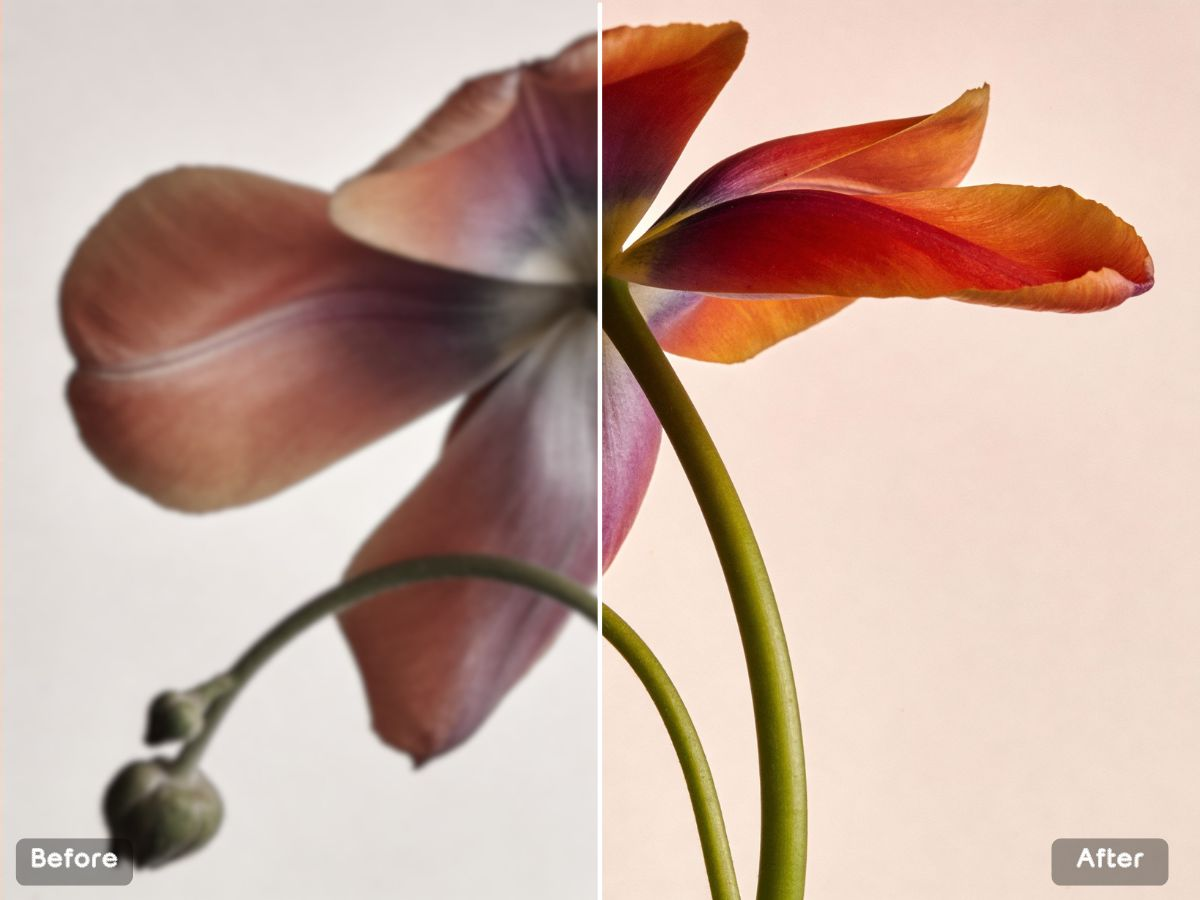
Some images fail quietly. They aren’t obviously bad—they’re just not share-worthy. A little grain, a little blur, a slightly dull look… and maybe the text is outdated. Suddenly the whole asset feels stale, even if your idea is strong.
The simplest rescue workflow in 2026 is two steps: clean the photo with enhancing photos online, then update the wording seamlessly using Free photo text editor . That way you fix both “quality” and “message” without redesigning from scratch.
Step 1: Enhance the Photo So It Looks Clean (Not Filtered)
A good enhancer boosts clarity gently, reduces compression noise, and improves lighting balance—without turning the image into a fake-looking filter result. You want “clean and premium,” not “overprocessed.”
Competitor Comparison: Photo Enhancement
| Tool | Strength | Common Limitation | Why this approach stands out |
| Remini | Quick results | Can look artificial | More realistic texture handling |
| Lightroom | Excellent tone control | Not true detail recovery | One-click cleanup + clarity |
| Photoshop | Pro-level control | Slow + skill required | Faster workflow for non-designers |
| Phone apps | Easy | Inconsistent | More stable output across images |
| Desktop AI tools | Strong | Install + paywall | Online convenience and speed |
Step 2: Replace Text Without Breaking the Design
Text updates are where time disappears: matching fonts, rebuilding background texture, aligning angles, and trying not to leave obvious traces. AI text editing simplifies this by reconstructing what’s behind the letters and blending replacements into the original style.
Competitor Comparison: Text Editing
| Tool | Strength | Common Limitation | Why AI text editing stands out |
| Photoshop | Maximum precision | Time-consuming | Quick updates without design skills |
| Canva | Template-friendly | Hard to match original style | Updates directly on existing images |
| Pixlr/Fotor | Online tools | Variable blending quality | Cleaner background reconstruction |
| Inpaint tools | Removes text | Doesn’t replace elegantly | Built for true text replacement |
| Outsourcing | Reliable | Slow | `Instant edits for fast cycles |
3 Real Case Scenarios
- Event posters (date/time changes)
Enhance the image so it looks crisp, then swap the date in seconds without rebuilding the poster. - Marketplace listings (supplier images)
Clean up dull product photos, then replace labels or pricing text without recreating the listing asset. - Screenshots for docs and tutorials
Enhance readability, then edit or remove sensitive text before sharing publicly.
3 Pro Tips
- Tip 1: Enhance first for smoother blending.
Cleaner texture makes text replacement look far more natural. - Tip 2: Avoid “extra-sharp” settings.
Natural clarity beats harsh edges every time—especially on faces. - Tip 3: Keep typography cues consistent.
Match alignment, spacing, and weight so replacements feel native.
There’s real confidence in knowing you can fix what you have—fast. No reshoot, no redesign, no “I’ll deal with it later.” In 2026, the best creators aren’t the ones with perfect assets. They’re the ones with a workflow that turns imperfect inputs into visuals they’re proud to publish—again and again.
Free photo text editing tools are increasingly relevant across the USA, UK, UAE, Germany, Australia, and France. Businesses in these markets share similar needs around faster content updates, cost control, and digital-first communication. As visual content cycles shorten globally, simple image editing workflows are becoming standard across industries.
Key Things to Know
- Free photo text editors reduce redesign costs
- Enhancing images first improves text replacement quality
- AI tools now handle background reconstruction reliably
- Speed matters more than perfect design for most teams
- Non-designers can update visuals confidently
- Reusing assets improves consistency across platforms
What Happens Next
Over the next 6–12 months, free photo text editors are expected to:
- Improve font matching accuracy
- Handle complex backgrounds better
- Support bulk image updates
- Integrate directly with content and commerce platforms
- Founders and creators should expect visual updates to become as easy as editing a document.
Final Takeaway
The best free photo text editor of 2026 is not about flashy effects. It is about speed, realism, and flexibility. For teams that reuse visuals often, the ability to enhance photos and replace text cleanly has become a core part of modern content workflows.
FAQ
What is a free photo text editor?
A tool that allows users to edit or replace text inside images without advanced design skills or paid software.
Can I update text without redesigning the image?
Yes. Modern AI-based tools reconstruct backgrounds and blend new text naturally.
Is photo enhancement necessary before text editing?
Enhancing first improves clarity and helps new text blend more naturally.
Who benefits most from these tools?
Founders, marketers, e-commerce sellers, and content creators who update visuals frequently.